
 We’re proud to be helping thousands of ecommerce business owners by giving the most digestible, battle-tested advice to be found online about succeeding with Google Ads.
How to Appeal a Google Merchant Center Misrepresentation Suspension in 2026
So you've fixed your store. You've gone through the compliance checklist, updated your policies, cleaned up your product pages, and you're confident your account is ready. Now you need to submit the appeal.
This is where most store owners make their second mistake. The first was not fixing the store before appealing. The second is using the wrong appeal method and burning one of their limited review attempts on a process that gives them no chance to explain anything.
Our team has handled over 300 GMC suspension cases since 2015. The appeal method you use matters as much as the fixes you made. This guide covers exactly how to do it right.
Want our team to handle the appeal for you?
We've reinstated 300+ suspended GMC accounts since 2015: audit, fixes, and appeal included. 30-day money back guarantee. Apply here
Haven't fixed your store yet? Start here first:
Step 1 — Fix Google Merchant Center Misrepresentation Suspension: The Complete Guide
Step 2 — What Google Checks on Your Store for Misrepresentation (2026)
Once your store is clean, come back here to submit the appeal correctly.
Download the free appeal template to use when contacting Google support: Free GMC Misrepresentation Suspension Appeal Template (2026)
How Google Actually Decides Whether to Reinstate You
Before you submit anything, understand this: Google does not reinstate accounts because you disagreed with the suspension.
Google reinstates accounts in compelling circumstances only. That means two things:
- You have identified the root cause of the suspension
- You have fixed it and can demonstrate that clearly
That's it. That's their entire criteria. Every review attempt you submit is essentially a verdict. Google looks at your account, decides whether you've met that bar, and either reinstates you or moves on. There's no back and forth. No negotiation.
This is why submitting before your store is fully clean is so costly. You're not just getting rejected, you're using up one of a limited number of chances to get your account back.
And one thing that catches store owners off guard: do not delete your suspended account thinking you can start fresh. Google's policy is explicit – the suspension follows you. Your new account gets suspended too, and you've lost your account history on top of it.
The Two Appeal Options — and Why They Are Not Equal
When your store is clean and you're ready to appeal, you have two options. Most store owners default to the first one. That's the mistake.
Option 1 — Automated appeal (not recommended)
Go into Merchant Center, find the account issue, and click “I disagree with the issue.”
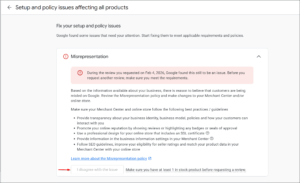
The problem: this process is fully automated. No human looks at it. You don't get to explain what you fixed, share any proof of your legitimate business, or provide any context. Google's system checks your account and makes a decision.
If it rejects you:
- You have burned one of your limited review attempts
- You are on a cooldown of at least 7 days before you can try again
- You have no idea what Google's system looked at or why it rejected you
Option 2 — Manual escalation (what our team uses every time)
This is the method that gives you a real chance. Here's exactly how to do it.
1- Click the question mark icon in your Merchant Center account
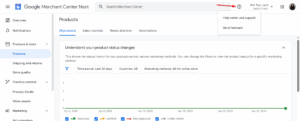
2- Select Contact Us
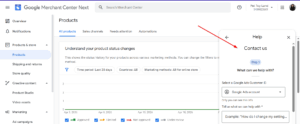
3- Reach Google support directly through chat — use email if chat isn't available
4- Tell them specifically what you identified and fixed; list every item
5- Share proof of your legitimate business: official documents, contracts, partnership agreements, anything that shows you're a real store operating correctly
6- Use this exact phrase: ask them to escalate your case to the wider team for a manual review. That specific language matters – it triggers a different internal process.
The key advantage of manual escalation: if a manual review gets rejected, there is no cooldown period. You are not losing time on top of losing an attempt. That alone makes it the only method worth using.
What to Say When You Contact Google Support
When you reach Google support, the way you communicate what you've done is as important as what you've actually fixed. Google is looking for evidence that you understood the root cause and resolved it, not just that you made some changes.
Your message needs to cover four things:
- Acknowledge the suspension and the specific policy that was violated
- List every specific fix you made – be detailed, not vague
- Provide proof of your legitimate business operation
- Ask them to escalate to the wider team for a manual review
We've put together a free copy-and-paste appeal template that covers all four of these. Download it here: Free GMC Misrepresentation Suspension Appeal Template (2026)
What Happens After You Submit
Once you've submitted your manual escalation request, sit tight.
- Standard automated reviews: around 7 business days
- Manual escalation reviews: Google typically responds within 48 hours
Do not submit multiple requests while waiting. It does not speed things up and can work against you.
If You Get Rejected
Don't give up. Misrepresentation suspensions sometimes take multiple attempts. A rejection doesn't mean your account is permanently closed – it means Google found something you missed.
Go back through the compliance checklist. Keep auditing your store. Keep finding and fixing things. Most of the time it is fixable.
If you still have review attempts remaining and want expert help identifying what Google is still seeing as a problem, our team does exactly that. We've seen every variation of this suspension type since 2015 and we know what Google looks for at each stage of the review process.
Still getting rejected after multiple attempts?
Don't burn your remaining attempts without expert help. Our team will audit your account, identify exactly what Google is still flagging, fix it, and handle the appeal. Apply here — 30-day money back guarantee.